

Fixing “Kernel Security Check Failure” on Windows VPS: What Causes It and How to Recover Quickly
A Windows VPS can run smoothly for months. Updates install without issues, RDP works as expected, and everything behaves predictably. Then one day a blue screen appears — Kernel Security Check Failure, a stop code that says nothing about what actually went wrong.
This error occurs on regular desktop PCs as well, but on a Windows VPS it often behaves differently: the triggers vary, the failure patterns are harsher, and the impact is more frustrating because you can’t physically restart the server. The good news is that the error is fixable once you understand what’s happening under the hood.
What This Error Actually Means on a Windows VPS
“Kernel Security Check Failure” appears when Windows detects corruption in a critical component — a driver, a memory structure, system files, or the virtual disk.
On a VPS, the kernel reacts even faster to inconsistencies because virtualized hardware is less tolerant. If the operating system detects serious mismatches in data, it throws a BSOD to prevent further damage.
The BSOD may appear once, repeat in a continuous loop, or allow the system to boot while RDP remains unavailable.
Common Reasons for Kernel Security Check Failure on Windows VPS
The underlying causes are familiar, but the mechanics differ from a physical machine.
1. Corrupted system files after a forced reboot
If the VPS restarts during updates or freezes mid-process, Windows may fail to boot correctly.
2. Virtual disk inconsistencies
A storage-layer glitch can corrupt NTFS structures and trigger stop code 0x139.
3. Driver conflicts inside the virtual environment
Network and storage drivers are especially sensitive on Windows Server.
4. Windows updates that didn’t finish correctly
Partially installed updates frequently lead to BSOD on Windows Server systems.
5. Malware or damaged system components
Rare, but possible on unmanaged VPS setups.
6. Memory-related issues caused by virtualization conflicts
While VPS RAM isn’t physical, allocation failures still cause kernel instability.
How to Fix Kernel Security Check Failure (Step-by-Step)
Below are the practical steps used by administrators to recover an unstable VPS.
Step 1 — Reboot the VPS and check Event Viewer
After rebooting, open:
Event Viewer → Windows Logs → System
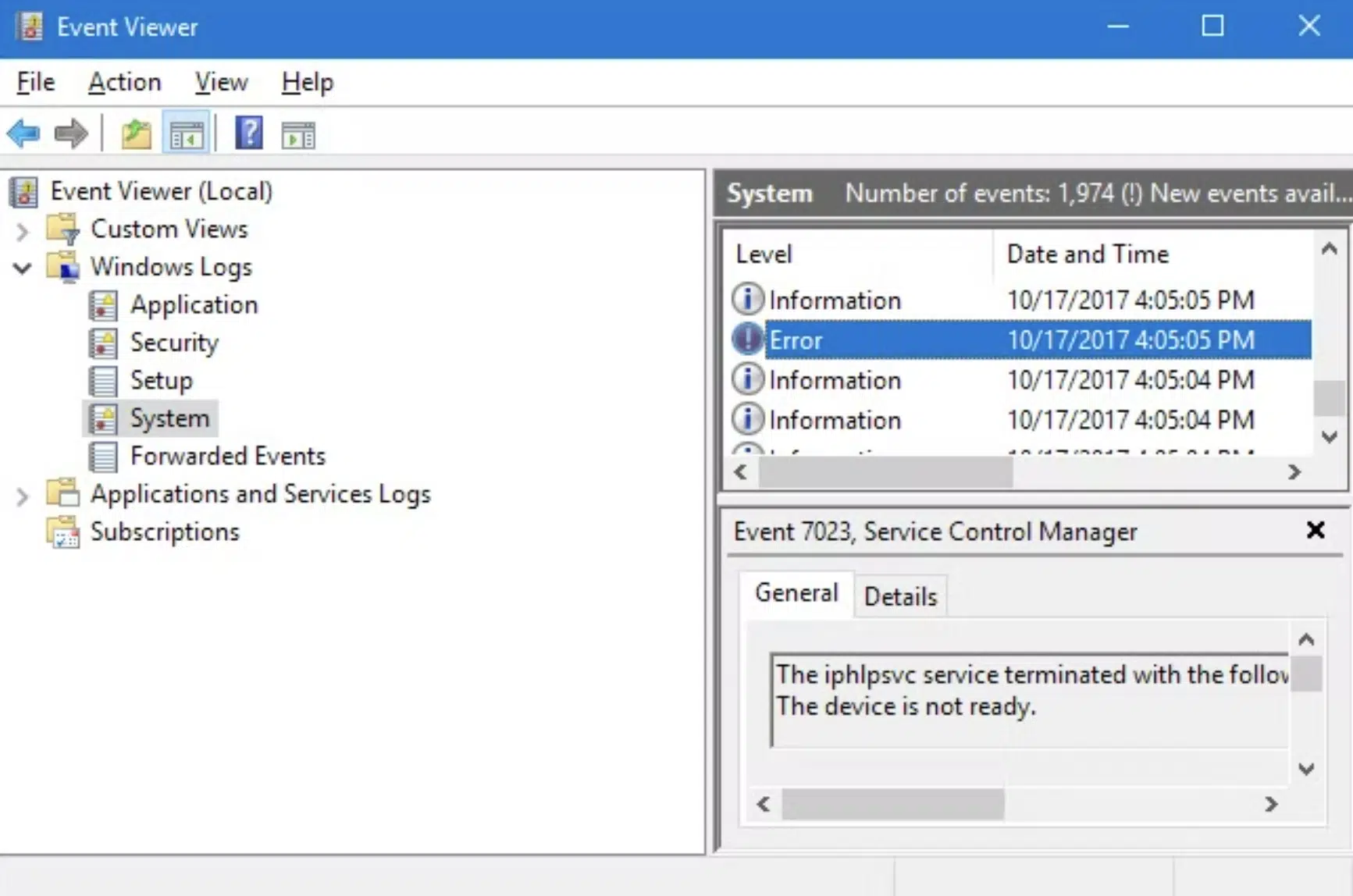
Look for entries such as:
● BugCheck
● Disk
● Ntfs
● Kernel-Power
Even a single entry can reveal the underlying issue.
Step 2 — Run SFC and DISM to repair system files
Open PowerShell as Administrator:
sfc /scannow
DISM /Online /Cleanup-Image /RestoreHealth
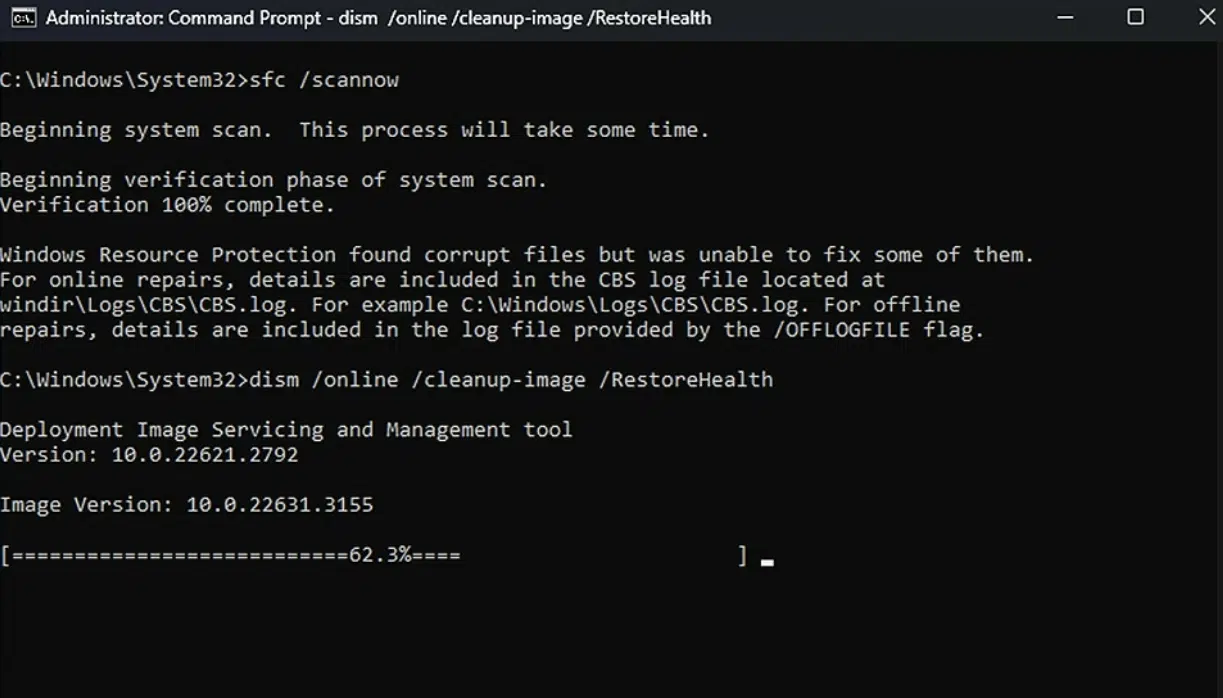
If system file corruption is the cause, these commands usually resolve it.
Step 3 — Check the virtual disk for errors
chkdsk C: /f /r
This step is especially important in VPS environments because NTFS inconsistencies are a common source of BSOD.
Step 4 — Roll back or update drivers
Network and storage drivers are frequent triggers for Kernel Security Check Failure. Windows Server does not always install the most stable version by default.
If the BSOD appeared after an update, rolling back the driver can stop the crash loop.
Note: Driver rollback is usually available only from Safe Mode or the Windows Recovery Environment. On some VPS setups, driver settings cannot be changed while the server is in normal boot mode or while RDP is unavailable.
Step 5 — Remove recently installed software
Security tools, system utilities, and networking software can conflict with kernel components.
If something was installed shortly before the crash, remove it first.
Step 6 — Boot into Safe Mode if the VPS loops through BSOD
Use the Recovery Environment:
Troubleshoot → Advanced options → Startup Settings → Enable Safe Mode
Safe Mode allows you to remove problematic drivers or updates.
Note: On many VPS platforms, Safe Mode requires using the built-in VNC or console access instead of RDP. RDP will not work until the system boots normally.
Step 7 — Restore the system from a checkpoint (if available)
Snapshots and restore points can save hours of downtime. If your provider supports snapshots, restoring one is often the fastest solution.

When RDP Doesn’t Work After the BSOD
Sometimes the VPS boots successfully, but RDP still doesn’t respond because the crash damaged:
● firewall rules
● network drivers
● RDP-related services
Restart the RDP service:
net stop termservice
net start termservice
Note: In minimal boot mode, TermService may not start until Windows returns to normal startup. This is expected behavior for Safe Mode.
Check the firewall:
netsh advfirewall firewall set rule group="remote desktop" new enable=Yes
If RDP remains unavailable, repairing or reinstalling the network driver usually resolves the issue.
When the Issue Is Not on Your Side
If the VPS still crashes after:
● SFC
● DISM
● chkdsk
● Safe Mode boot
● driver rollback
Then the problem may originate from the hypervisor or the storage layer. In such cases, the issue cannot be fixed from inside the VPS, and support should be contacted.
If your server crashes often or you need a more stable setup, consider switching to a stronger environment. Explore our high-performance Windows VPS plans designed for smooth, stable operation under heavy workloads.
How to Avoid Kernel Security Check Failure in the Future
A few habits prevent most BSOD cases:
● avoid forced reboots during updates
● don’t overload the server with questionable utilities
● install updates in controlled batches
● keep regular snapshots
● use only trusted drivers
When maintained properly, Windows Server operates very reliably.
Conclusion
Kernel Security Check Failure feels catastrophic at first — a blue screen on a remote machine always creates stress.
In reality, this BSOD is fully fixable using system repair tools, disk checks, and driver resets. Once you understand how it behaves inside a virtual environment, recovery becomes significantly faster and easier.